

The best ergonomic keyboards and productivity mice of 2026 pair split or contoured wrist-neutral geometry with magnetic Hall-effect switches and low-latency 2.4GHz wireless links. Standout hardware includes the Logitech MX Master 4, Keychron M6 8K, Dygma Raise 2, and Keychron K2 HE, bridging all-day repetitive strain prevention with responsive precision.
Why Magnetic Hall-Effect Switches Entered the Productivity Desk
For decades, office peripherals and performance gaming gear occupied separate universes: ergonomic boards relied on mushy scissor-membrane domes, while high-polling wireless tech stayed locked inside flashy esports chassis. That boundary collapsed in 2026. Magnetic Hall-effect switches replace physical metal leaf contacts with contactless Hall sensors that measure key travel continuously using magnetic flux.
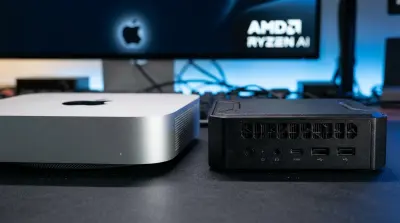
For developers, writers, and analysts typing 6,000 to 10,000 words daily, contactless actuation eliminates mechanical switch chatter and lets users tune individual key actuation anywhere from 0.2mm to 3.8mm. Lightening modifier keys to 0.4mm while keeping spacebar and backspace at 2.2mm reduces finger fatigue without triggering accidental typos. Paired with compact desktop workstations like those in our 2026 mini PC workstation guide, a modern wireless peripheral stack eliminates desk clutter while preserving sub-millisecond responsiveness.
2026 Ergonomic Keyboard and Productivity Mouse Comparison
Evaluating ergonomic keyboards alongside productivity mice reveals a clear split between software-driven workflow automation and raw wireless sensor latency.
| Device | Category & Layout | Switch / Sensor Tech | Wireless Polling & Battery | Street Price |
|---|---|---|---|---|
| Logitech MX Master 4 | Right-Handed Productivity Mouse | 8,000 DPI Darkfield + Haptic Panel | 125Hz (Logi Bolt / BT) / 70 days | $119.99 |
| Keychron M6 8K | Lightweight Ergo Mouse (87.9g) | 30,000 DPI Optical + Dual Wheel | Up to 8,000Hz (2.4GHz / BT) | $69.99 |
| Keychron K2 HE | 75% Wireless Hall-Effect Keyboard | Gateron Nebula Magnetic HE | 1,000Hz 2.4GHz / 110 hrs (LED off) | $130–$140 |
| Dygma Raise 2 | Split Wireless Ergonomic Keyboard | Hot-Swap MX + 4x Kailh Choc Thumb | Low-Latency RF / 4,740mAh total | $369 |
| Logitech Ergo K860 | Contoured Unibody Split | Quiet Scissor-Switch | Logi Bolt / Bluetooth / 24 months | $129.99 |
Haptic Productivity vs. High-Polling Wireless Mice
The Logitech MX Master 4 remains the benchmark for spreadsheet and timeline navigation, adding a textured stain-resistant shell, exposed repairable screws with a user-replaceable 650mAh battery, and a Haptic Sense Panel that vibrates when snapping layers or invoking the customizable Actions Ring. Logitech estimates the cursor-anchored Actions Ring cuts mouse travel by up to 63% and saves up to 33% of menu-hunting time, though its 125Hz polling rate feels noticeably less fluid on 144Hz+ monitors than gaming-grade sensors.
That gap is precisely where the Keychron M6 8K strikes. Weighing just 87.9 grams compared to the MX Master 4's 151.8 grams, the M6 8K delivers an 8,000Hz polling rate, dual vertical and horizontal scroll wheels, and browser-based Keychron Launcher configuration at $69.99—nearly half Logitech's asking price.
You May Also Like
As desk sessions stretch past eight hours, wrist health depends less on soft foam padding and more on eliminating forearm pronation and ulnar deviation.
Split Tenting, Reverse Tilt, and Ulnar Deviation
True ergonomic keyboards address three biomechanical stressors simultaneously: shoulder adduction, ulnar wrist bending, and forearm pronation. Unibody curved boards like the Logitech Ergo K860 gently angle the hands inward, while true two-piece split boards such as the Dygma Raise 2, Keychron Q11, and Asus ROG Falcata let you position each half at shoulder width. Adding negative tilt (raising the front edge slightly higher than the back) prevents wrist extension, keeping carpal tunnel pressure low. Wireless split keyboards also let you drop a trackpad or vertical mouse directly between both halves, keeping pointing reach inside your natural shoulder envelope.
Key Biomechanical Specs to Verify Before Buying
- Actuation Force & Travel: Look for 35g–45g linear or tactile switches, or Hall-effect magnetic switches adjustable down to 0.2mm to minimize bottoming-out impact.
- Tenting Angle: Aim for 5 to 15 degrees of lateral tenting on split ergonomic keyboards to rotate the radius and ulna into a neutral handshake posture.
- Thumb Cluster Offloading: Shifting Enter, Backspace, and Space onto dedicated thumb keys reduces pinky strain on standard ANSI layouts.
- Vertical Mouse Option: If you experience persistent lateral epicondylitis or pronation ache, pair your keyboard with a 57-degree vertical mouse rather than a flat shell.
How to Transition to an Ergonomic Desk Setup Without Losing Speed
Switching abruptly to a split layout can temporarily halve your typing speed. Use this phased rollout plan, and check our device reviews section for complementary monitor arm and desk lighting recommendations.
- Start with Zero Tenting for Week One: Place both halves of a split keyboard shoulder-width apart flat on the desk until muscle memory adapts to the center gap.
- Introduce 5–10 Degrees of Tenting in Week Two: Raise the inner edges gradually and enable negative front tilt to keep wrists flat rather than bent upward.
- Map High-Frequency Combos to Thumb Keys: Assign Copy, Paste, Enter, and layer-switching to thumb clusters via QMK/VIA or Keychron Launcher to cut finger travel.
- Calibrate Mouse DPI to Monitor Width: Set your mouse between 1,600 and 2,400 DPI so you can traverse a 32-inch 4K display using subtle wrist pivots rather than repetitive shoulder sweeps.
Frequently Asked Questions
Are Hall-effect ergonomic keyboards worth it for non-gamers?
Yes. Beyond gaming Rapid Trigger, Hall-effect switches allow per-key actuation tuning and dual-action keystrokes—such as a light tap for a lowercase letter or a full press for a macro—without physical contact wear.
Should I buy the Logitech MX Master 4 or the Keychron M6 8K?
Choose the Logitech MX Master 4 if you live inside Adobe Creative Cloud, Excel, or multi-Mac/Windows workflows and value MagSpeed metal scrolling and haptic feedback. Choose the Keychron M6 8K if you use a 120Hz+ monitor, prefer a lighter 88g mouse, or want 8,000Hz polling under $70.
Do ergonomic keyboards require a palm rest?
Only if your keyboard has a tall front chassis height like the Keychron K2 HE. Ideally, hover your wrists while typing and rest your palms lightly only during pauses, keeping the keyboard flat or negatively tilted.





Comments (0)
Leave a Comment